Metadata and artwork
Understand Finetic metadata precedence, local NFO files, configured providers, artwork roles, matching, refreshes and locked fields.
 1Trusted title metadata2Artwork roles
Metadata sources#
Finetic can combine local metadata with configured online enrichment. The effective value should remain explainable rather than silently changing every time a provider returns something different.
Typical sources include:
- Local NFO files stored beside the media
- Local poster, backdrop, logo and episode artwork
- TMDB when an administrator configures a valid API key
- TV-specific provider results used for matching or genuine gaps
- Administrator edits and locked fields
Precedence and trust#
Local NFO and deliberately selected local artwork remain authoritative by default. Provider enrichment fills genuine gaps. Administrator-edited or locked fields should not be overwritten by a routine refresh.
The metadata view distinguishes provenance so an administrator can tell whether a title, rating or image came from local data, a provider or an explicit edit.
Artwork roles#
| Role | Intended use |
|---|---|
| Poster | Portrait library cards and title identity |
| Backdrop | Wide hero and details background |
| Logo | Transparent title treatment where available |
| Season poster | Artwork specific to one season |
| Episode still | Thumbnail for one episode |
| Person image | Cast and crew portrait |
One image should not be copied into every role merely because it exists. A season without its own poster may use a deliberate series fallback, but Finetic should preserve the distinction.
Configuring TMDB#
Add the API key through Admin → Configuration → Metadata or during first-run setup. Test the configuration before saving. Finetic stores provider secrets encrypted and returns only a redacted state to the browser.
Adding a key does not automatically rewrite every trusted field. Run a metadata refresh for the relevant library or item. Artwork or cast gaps should be eligible for enrichment even when the title itself already exists.
Match and inspect#
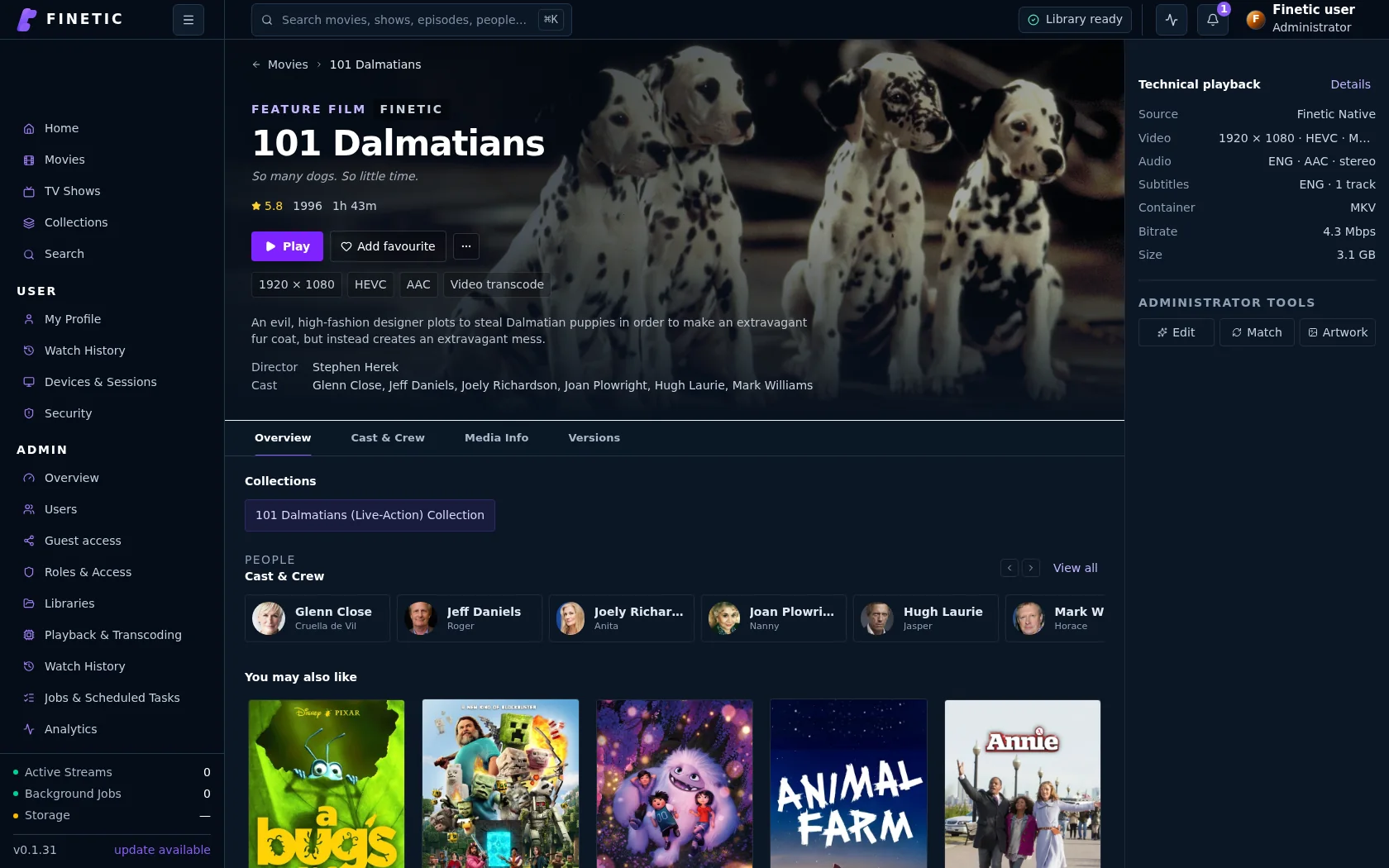
Match searches using the current item's real title, media type and year. Candidate results must display their own provider artwork and identifiers. Inspect and match lets you compare the local item with a candidate before applying it.
If the match window always shows an unrelated demonstration title, that is a defect—not intended fallback behaviour.
Refresh safely#
Choose the smallest scope that solves the problem:
- Refresh one item's missing metadata.
- Refresh a season or show when hierarchy data is wrong.
- Refresh a library after provider configuration changes.
- Use full rematching only when identity itself is unreliable.
Provider rate limits and transient failures appear as jobs. Thousands of failed enrichment jobs usually indicate configuration, rate limiting or connectivity—not thousands of independently broken files.